 Mammon
Guides Center · version 1.2.0
Every guide, in one place.
Install, set up, update and use Mammon Capital safely, on every platform. The same steps the app follows in Step by step. Start in training; real money only when you decide.
How to use Mammon
Pick where you will use it.
First steps
Create your account, sign in, set up your profile
Create the account
- During the closed beta, accounts are created only with an invited e-mail.
- In the app, choose Create account, type your details and send a photo of your ID. It is read once to confirm you are 18 or over and is not kept.
- Choose a strong password: at least 10 characters with upper case, lower case and a number.
Sign in
- Open the Windows app and sign in. The first account that signs in on a computer becomes the owner of that Mammon Capital.
- Use the same account on the phone and in the web app.
Your profile
- Settings → Profile: photo, name in the app and a short bio. Your full name, birthday and phone stay private.
- Choose the language in the top bar: Português or English. The choice is remembered.
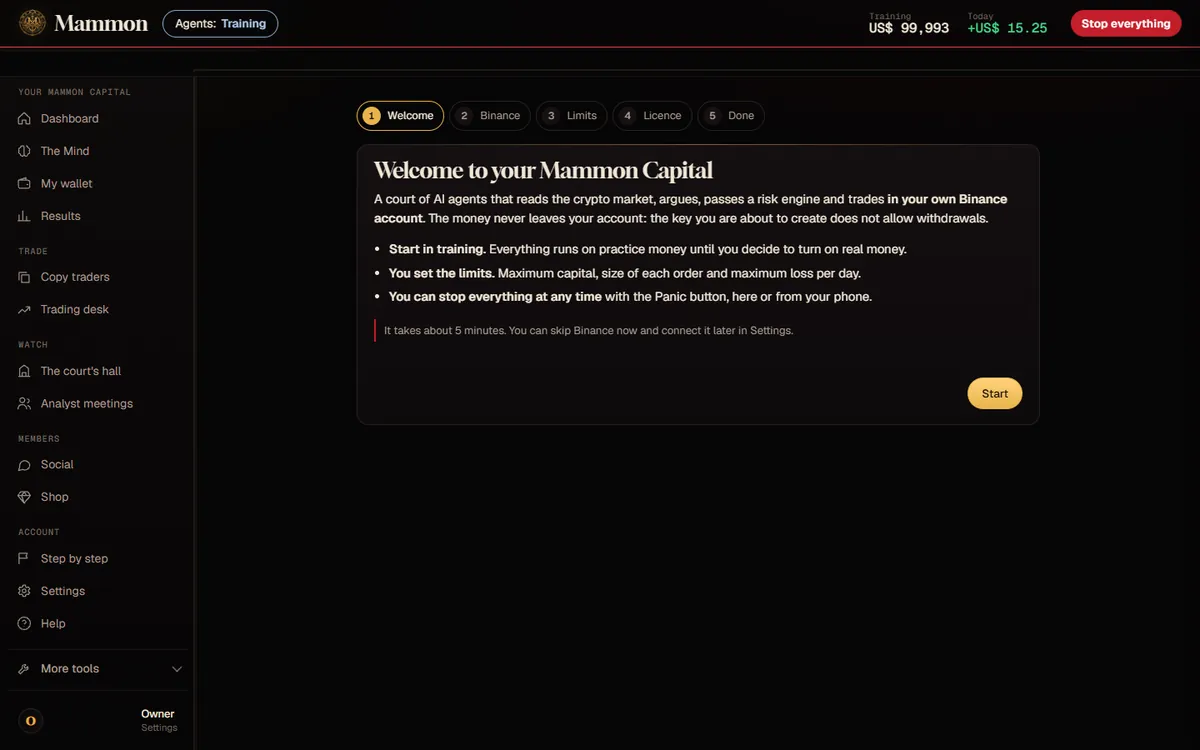
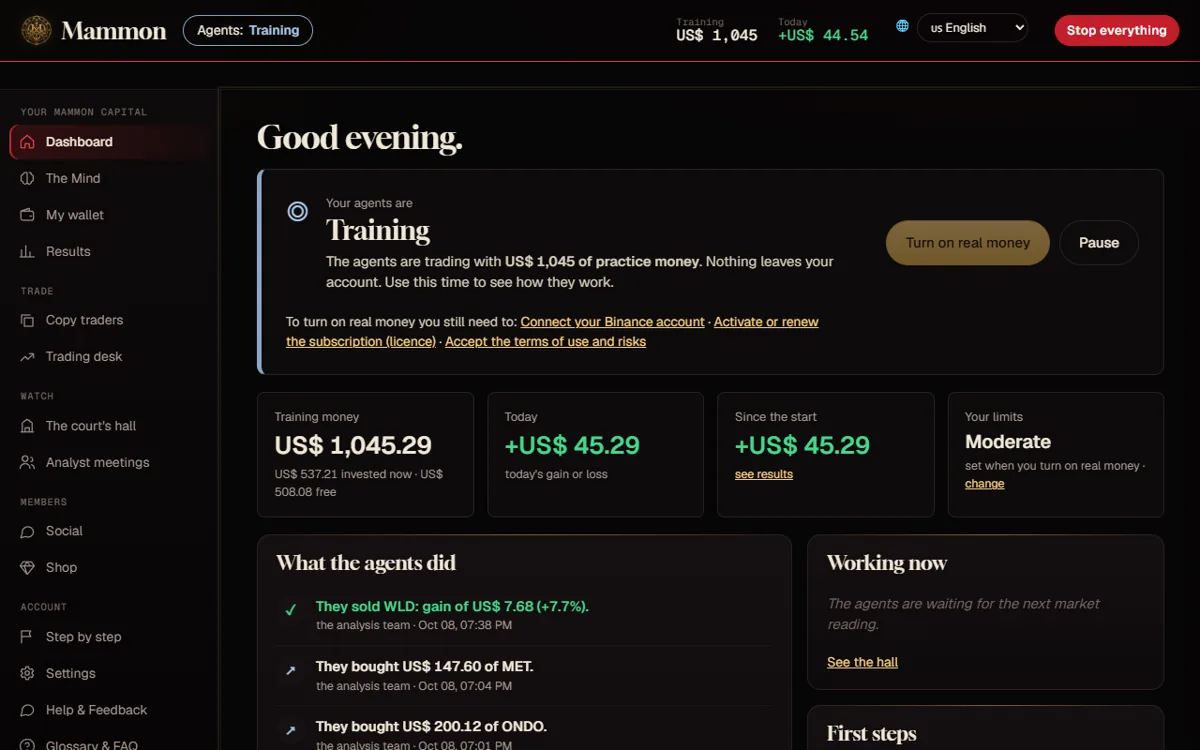
Everything starts in training mode, with US$ 1,000 of practice money on real market prices.
Web
Use Mammon in the browser
Access
- The web app comes with the Windows app: with it open, go to
http://127.0.0.1:8000/appon the same computer. - From another device: on the computer, Settings → Phone → Reach it from anywhere, then open the link or scan the code.
- Sign in with the same Mammon account.
Updates
When the computer gets a new version, the web app shows New update available; Update now loads the new screens. Nothing to download.
Common problems
- It does not open: the computer must be on, with Mammon Capital open.
- The link stopped working: the link to reach it from anywhere changes when the computer restarts. Open Settings → Phone again for the new one.
Windows
Install, set up and update on Windows
Install
- Download the Windows zip from the website and extract it to a fixed folder, for example Documents\Mammon Capital.
- Open Abrir Mammon Capital. Windows may warn that the app is new: More info → Run anyway.
- Requirements: Windows 10 or 11, 64-bit.
Set up
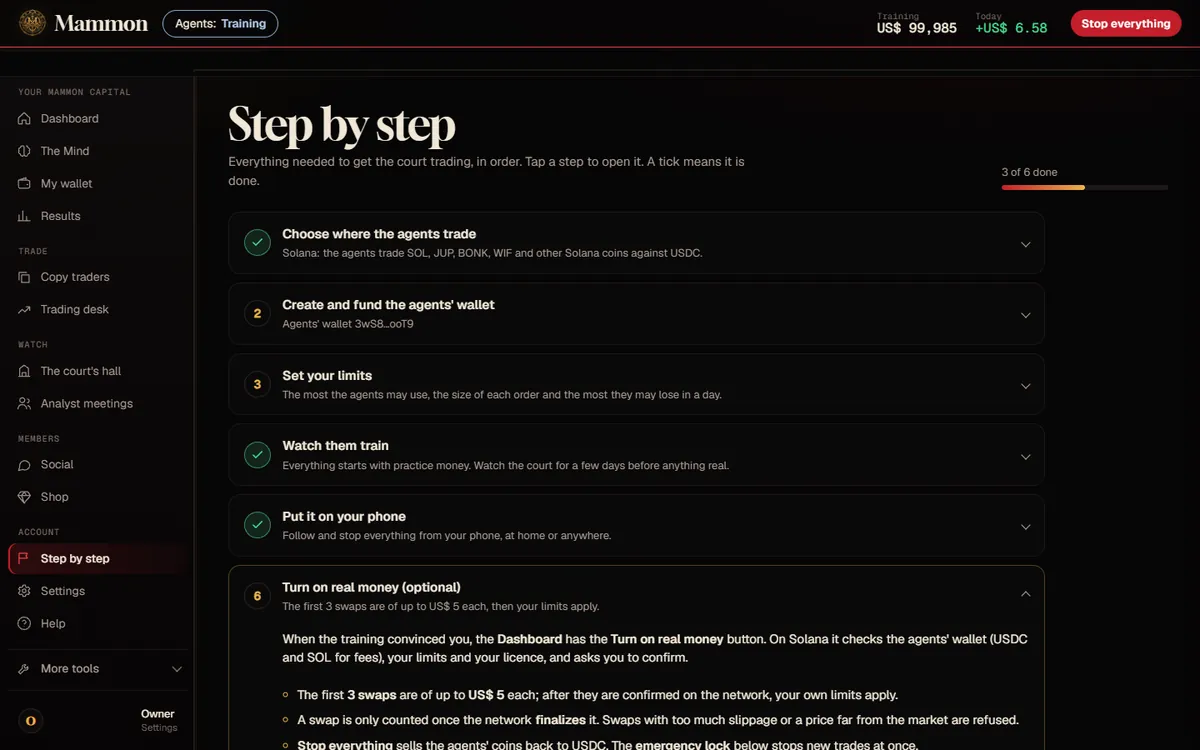
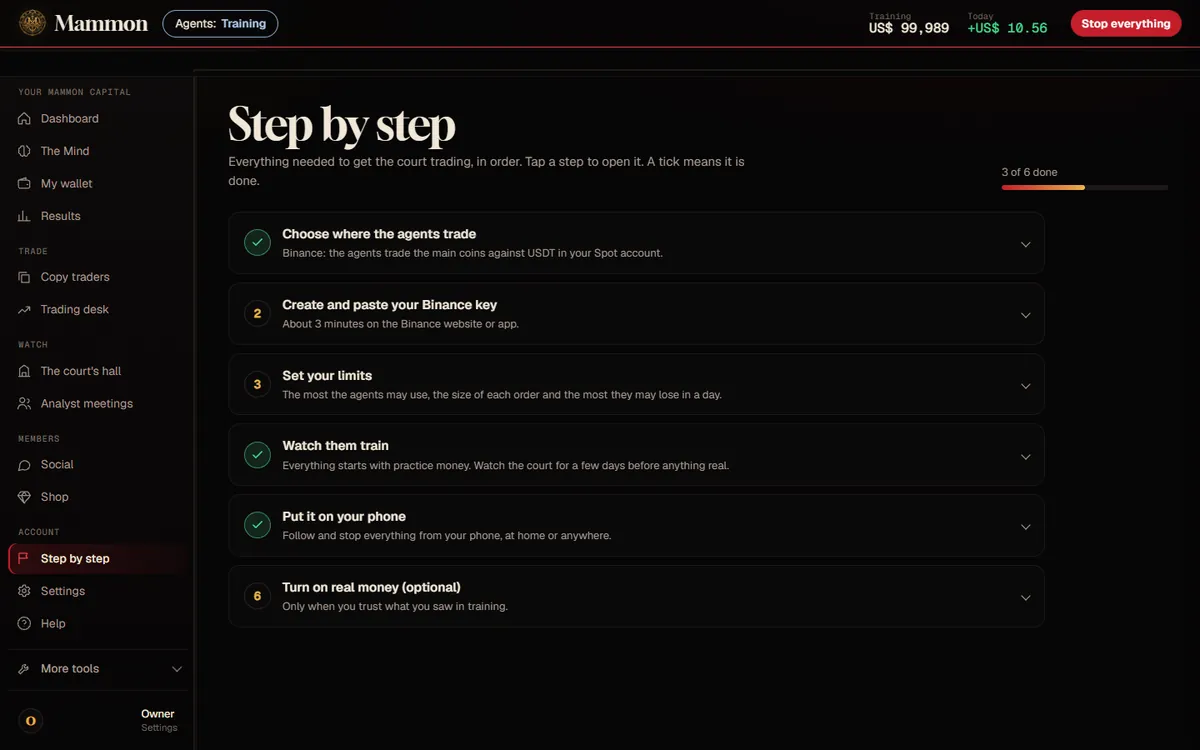
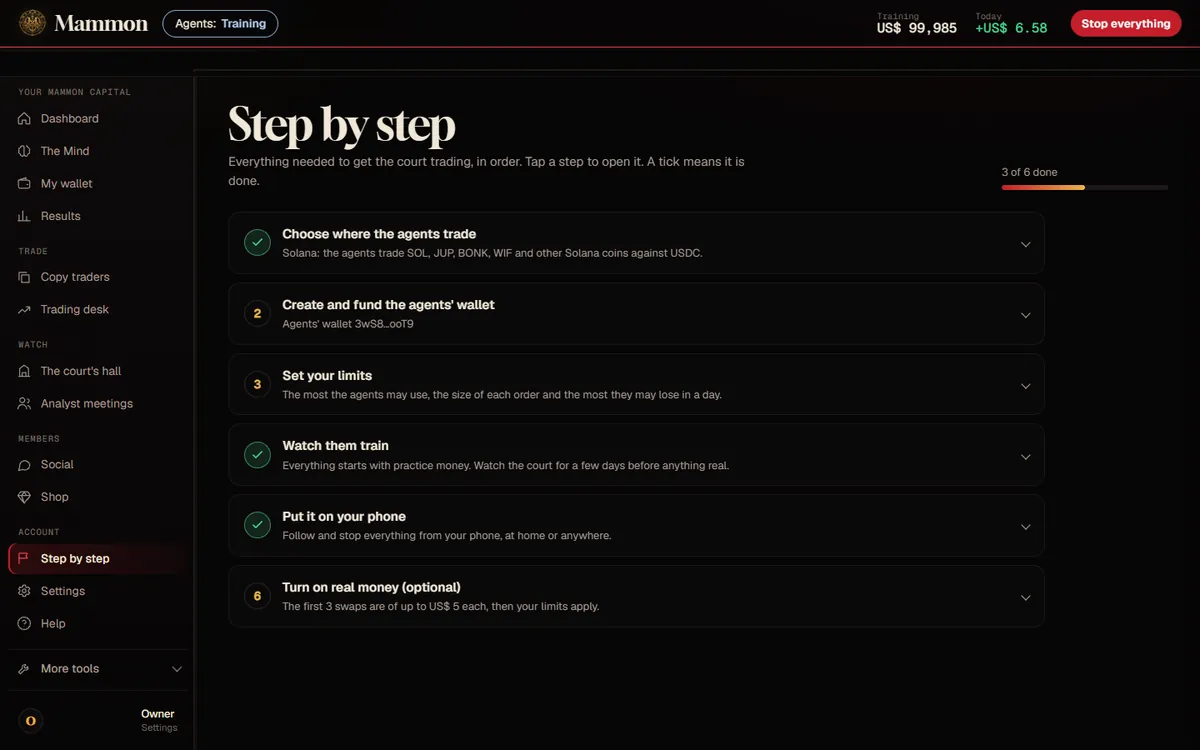
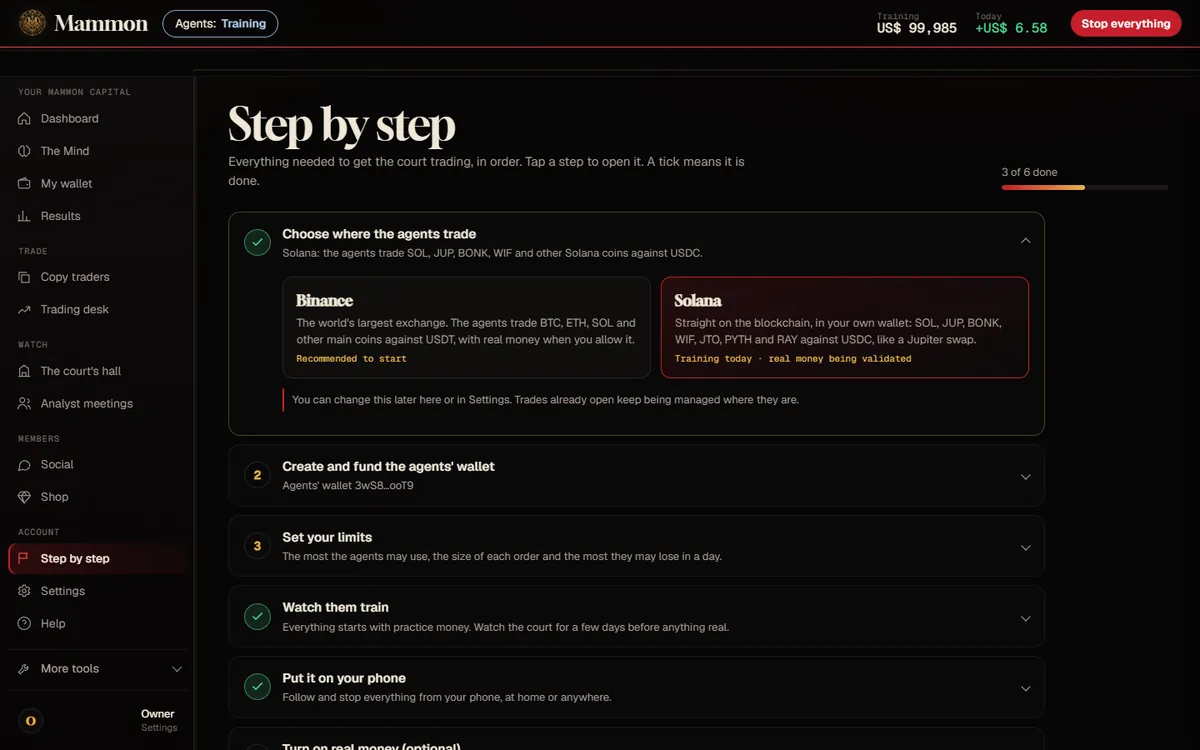
Open Step by step: choose Binance or Solana, connect, set your limits, watch the training and put it on your phone. A tick marks each step done.
Update
The app checks for new versions on its own. See How Mammon updates.
Common problems
- Windows blocked the app: More info → Run anyway. The app is new and not yet signed with a commercial certificate.
- Binance refuses the key: your internet address changed; add the new one to the key's trusted IPs (the app shows it).
- The phone cannot connect: keep the computer on and the app open; turn on Reach it from anywhere.
Android
Install, set up and update on Android
Install
- On the phone, download the APK from the website.
- When Android asks, allow your browser to install apps, then tap Install. Android 7 or newer, 64-bit phones.
Set up
- Sign in with the same Mammon account.
- On the computer, Settings → Phone → Reach it from anywhere, and scan the code with the phone. It works on 4G or any Wi-Fi; when the computer restarts, the phone finds it again by itself.
Update
The app shows New update available. Update now downloads the new version from the official link; Android installs it only if it is signed by the same developer, never an older version, and your data stays.
Common problems
- The installer is blocked: allow the browser in Settings → Apps → Install unknown apps.
- Google Play: the app is not there yet. When it is, updates will come from the Play Store.
iPhone / iOS
Use Mammon on the iPhone
There is no App Store version yet. On the iPhone you use the web app, served by your computer.
Install the web app
- On the computer, Settings → Phone → Reach it from anywhere, and open the link on the iPhone in Safari.
- Tap Share → Add to Home Screen. Mammon opens full screen, with its own icon.
- Sign in with the same Mammon account.
Update
It updates with the computer: when there is a new version, the web app shows New update available and Update now loads it.
Limits today
- The computer must be on, with Mammon Capital open.
- The link changes when the computer restarts: the Home Screen icon then needs the new link from Settings → Phone.
Binance
Connect Binance with a trading-only key
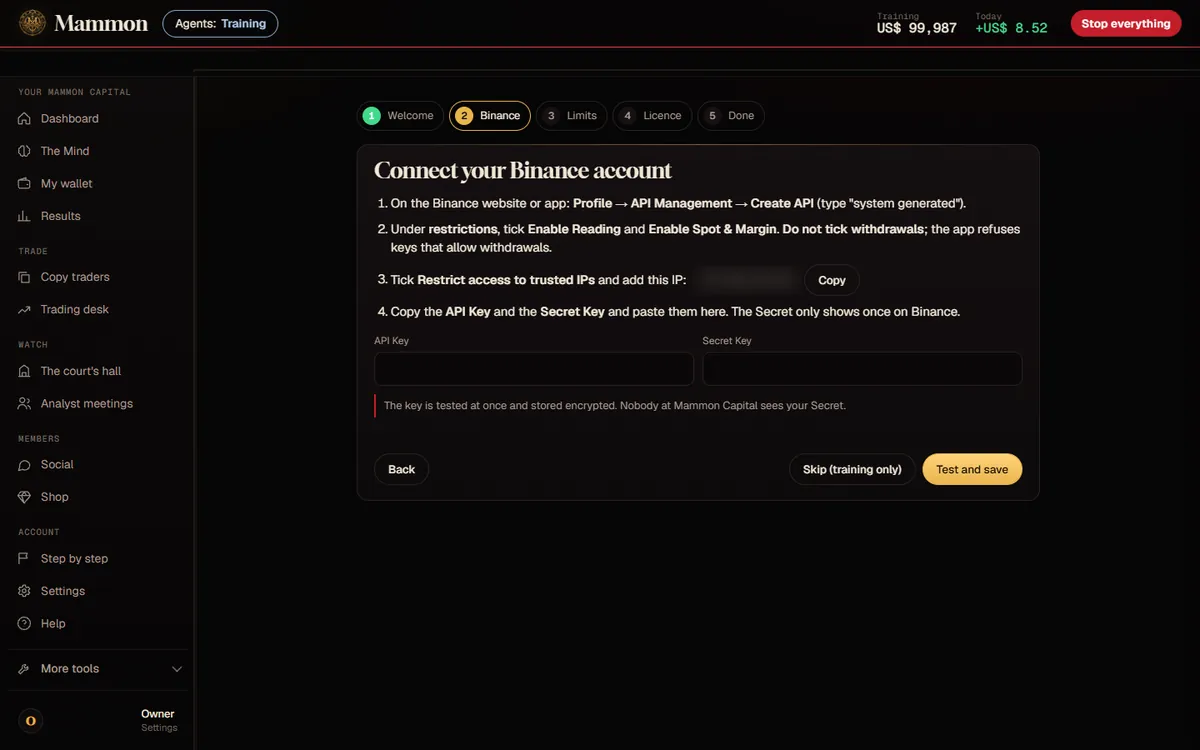
- Sign in at binance.com or in the Binance app. Finish the identity check first if your account is new.
- Go to Profile → API Management → Create API, choose System generated and name it
Mammon. - Permissions: in Edit restrictions tick Enable Reading and Enable Spot & Margin Trading. Nothing else.
- Security: choose Restrict access to trusted IPs only and add the address the app shows you.
- Copy the API Key and the Secret Key (the Secret shows only once) and paste them in the app. The key is tested at once and stored encrypted on your computer.
Never tick withdrawals. The app refuses any key that can withdraw, and so should you.
Solana
Connect Solana: the agents' wallet
Set up
- In Step by step, choose Solana as the place where the agents trade.
- Tap Create the agents' wallet. It is created on your computer; its key is stored encrypted and never typed anywhere.
- From your own wallet (Phantom, Solflare) or an exchange, send USDC to trade with and about 0.05 SOL for network fees to the address shown.
- Optional: add your main wallet's public address to see its balance. It is only read, never touched.
Operation
- The agents trade the seven core coins plus the verified, liquid tokens found by the daily discovery.
- Every swap is quoted, checked, signed, simulated and sent, and counted only when the blockchain finalizes it.
- The first three real swaps are capped at US$ 5 each.
- To take the money back: Export the wallet key (only on the computer itself, with real money off, typing EXPORT) and open it in Phantom.
Never paste a secret phrase or a private key into anything, Mammon included. The app and support never ask for yours.
Agents
Create, train, configure and limit the agents
Create
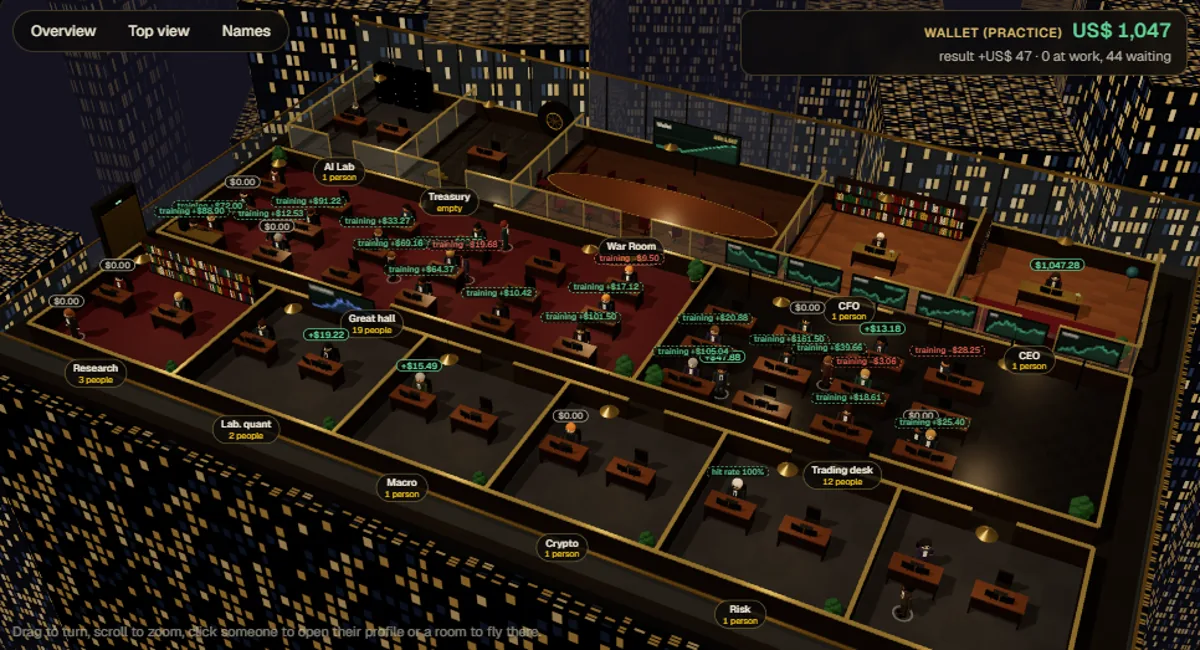
The court starts with its agents already at work. In Hire you can add new ones; the court also copies winners into new seats and removes the ones that keep losing.
Train
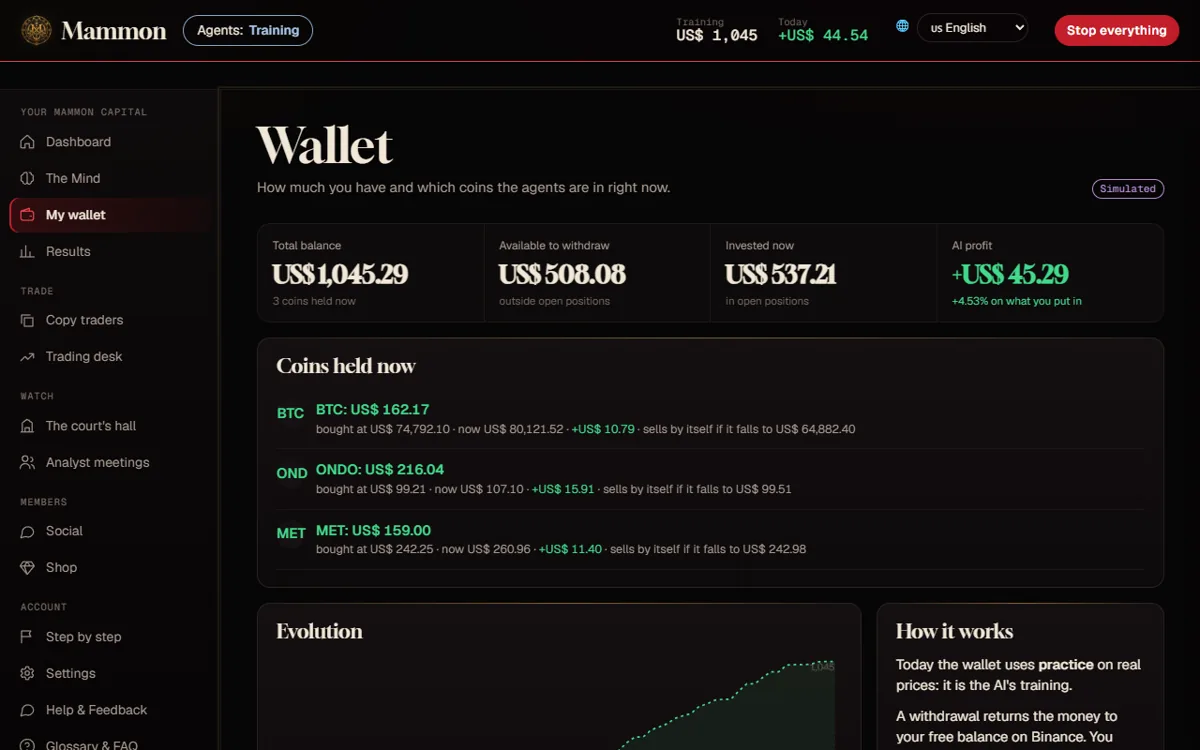
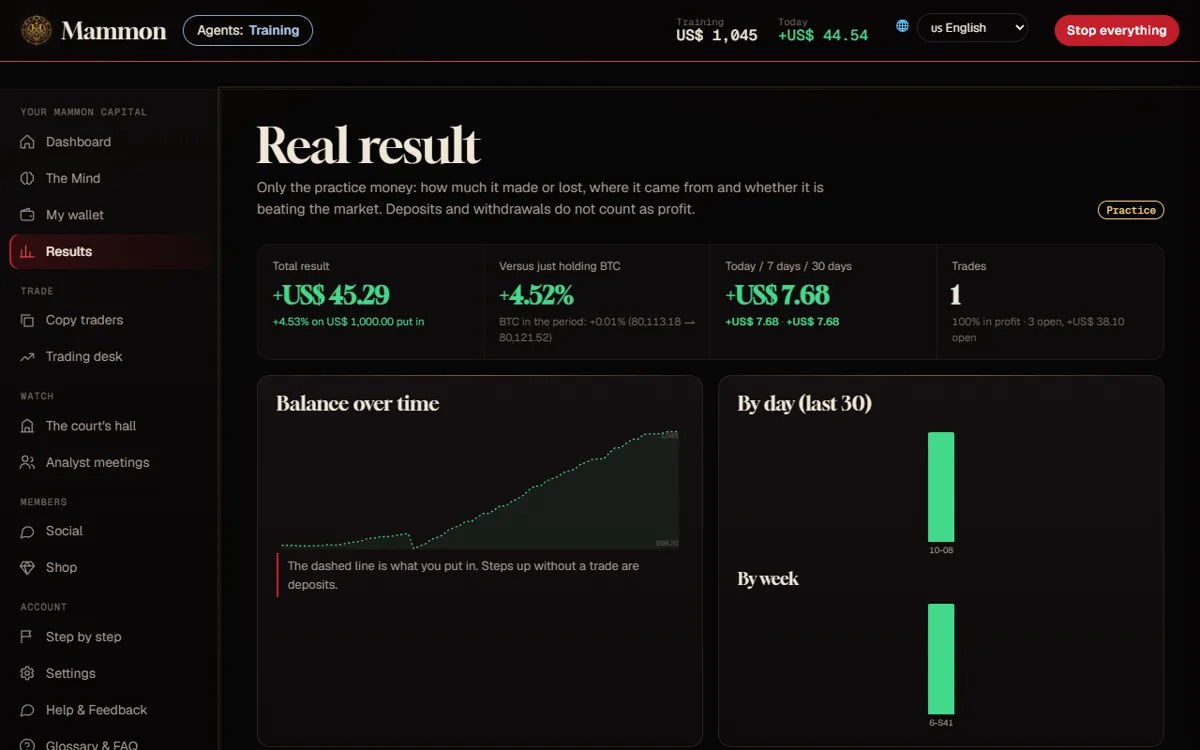
- Every account starts with US$ 1,000 of practice money, on real market prices.
- Open The court's hall to see who is working and what each agent is doing.
- Check Results: what the training made or lost, with every trade explained. Give it a few days.
Configure and limit
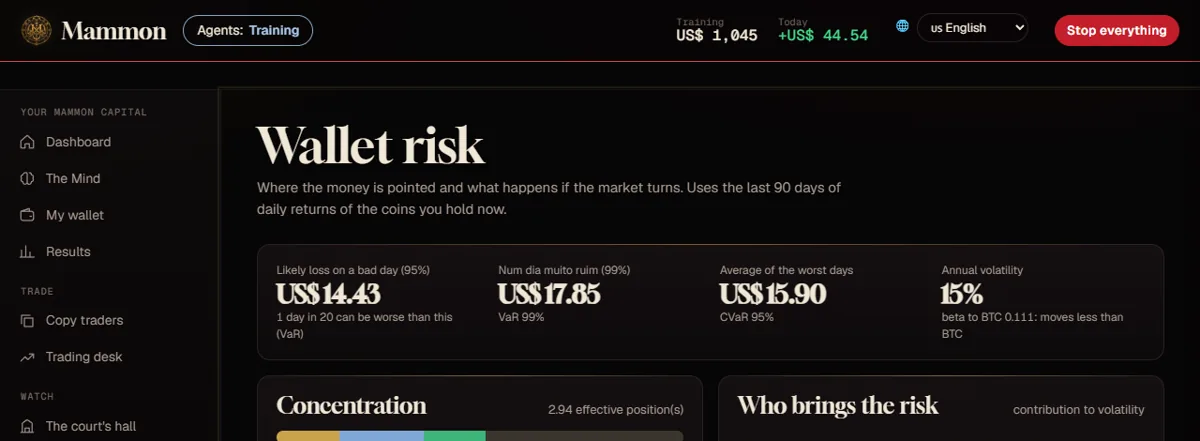
- Your limits apply to every agent at once: largest order, maximum exposure and maximum loss per day.
- Pick a risk profile: Conservative is recommended to start.
- No plan caps the amount the agents operate: the ceiling is the one you set in your own limits.
Security
Exposure, daily loss, slippage, emergency and Stop everything
- Exposure: the most the agents may have invested at once. Start small.
- Daily loss: when reached, nothing new opens until tomorrow.
- Slippage: on Solana every swap is refused above 1% slippage, above 1% price impact or 2% away from the market price.
- Emergency: the Solana emergency lock blocks new trades at once; selling and stops keep working.
- Stop everything: top right, on the computer and on the phone, sells what the agents hold and stops them.
- Terms: real money turns on only after you accept the terms and risks, with a typed confirmation.
Investing involves risk. Only use money you can afford to lose. Past or simulated results do not promise future ones.
Updates
How Mammon updates itself
- New versionpublished and signed by the Mammon team
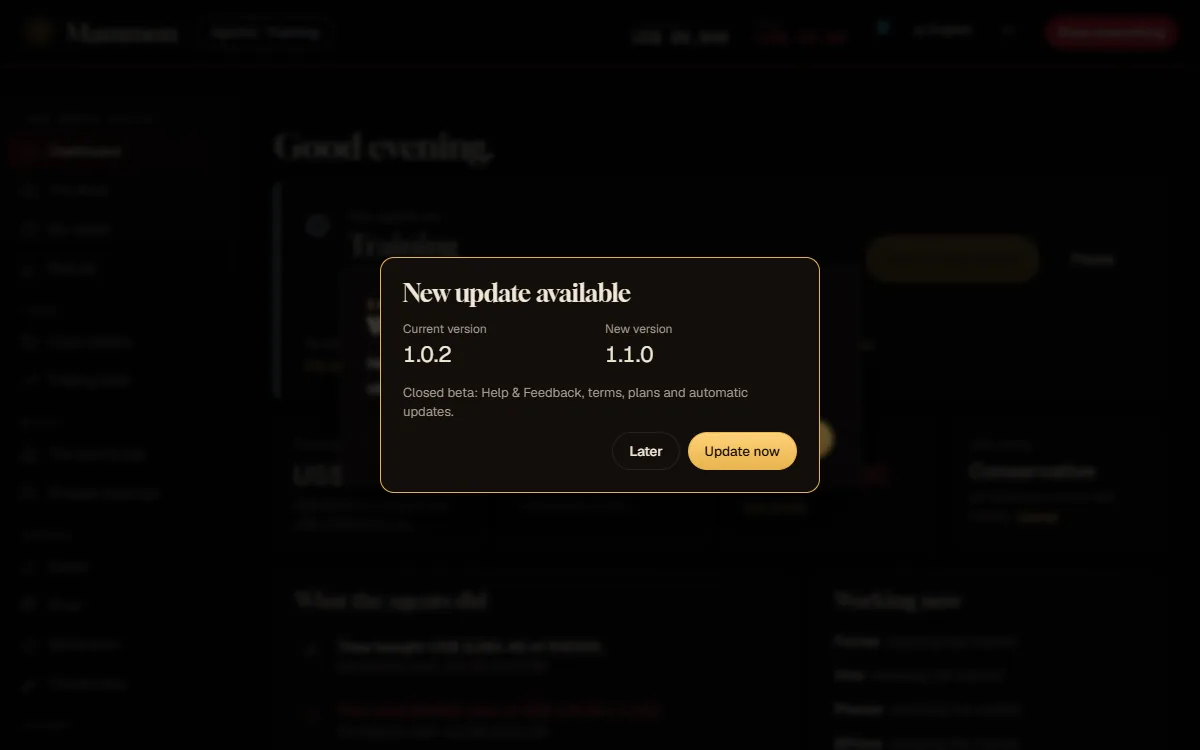
- NoticeNew update available, current and new version
- UpdateUpdate now, or Later
- DoneMammon opens again, settings kept
You normally never come back to the website to download again.
- Windows: the package is downloaded over HTTPS and accepted only if its signature and SHA-256 match; an interrupted download resumes. The previous version is kept, and if the new one does not start, it comes back by itself. Your settings, keys and history are never touched.
- Android: the new APK comes from the official link and Android installs it only if it is signed by the same developer.
- Web and iPhone: the new screens load with Update now.
- Required updates: a security fix or a critical problem may make an update required: then there is no Later.
- No downgrades: an older version is never offered.
Version 1.1.0 is the first that updates itself. If you have 1.0.2, download 1.1.0 once more from the website.
No guides in this category yet.